The Handbook
Everything you need to write, typeset and publish your book with AethelWrite, explained in plain words. Open a question to see its answer. If yours isn't here, a person will reply: write to us.
The Handbook
Contents
- Getting started7 questions
- Writing6 questions
- Backup & sync6 questions
- Cover Workshop4 questions
- Formatting & typesetting10 questions
- AI Ghostwriter5 questions
- API keys, step by step11 questions
- Without a key2 questions
- Read aloud & dictation7 questions
- Revision Center & manuscript check7 questions
- Export & publishing5 questions
- Plans & account5 questions
- Privacy & security5 questions
- Keyboard shortcuts1 question
Chapter I: Getting started
7 questions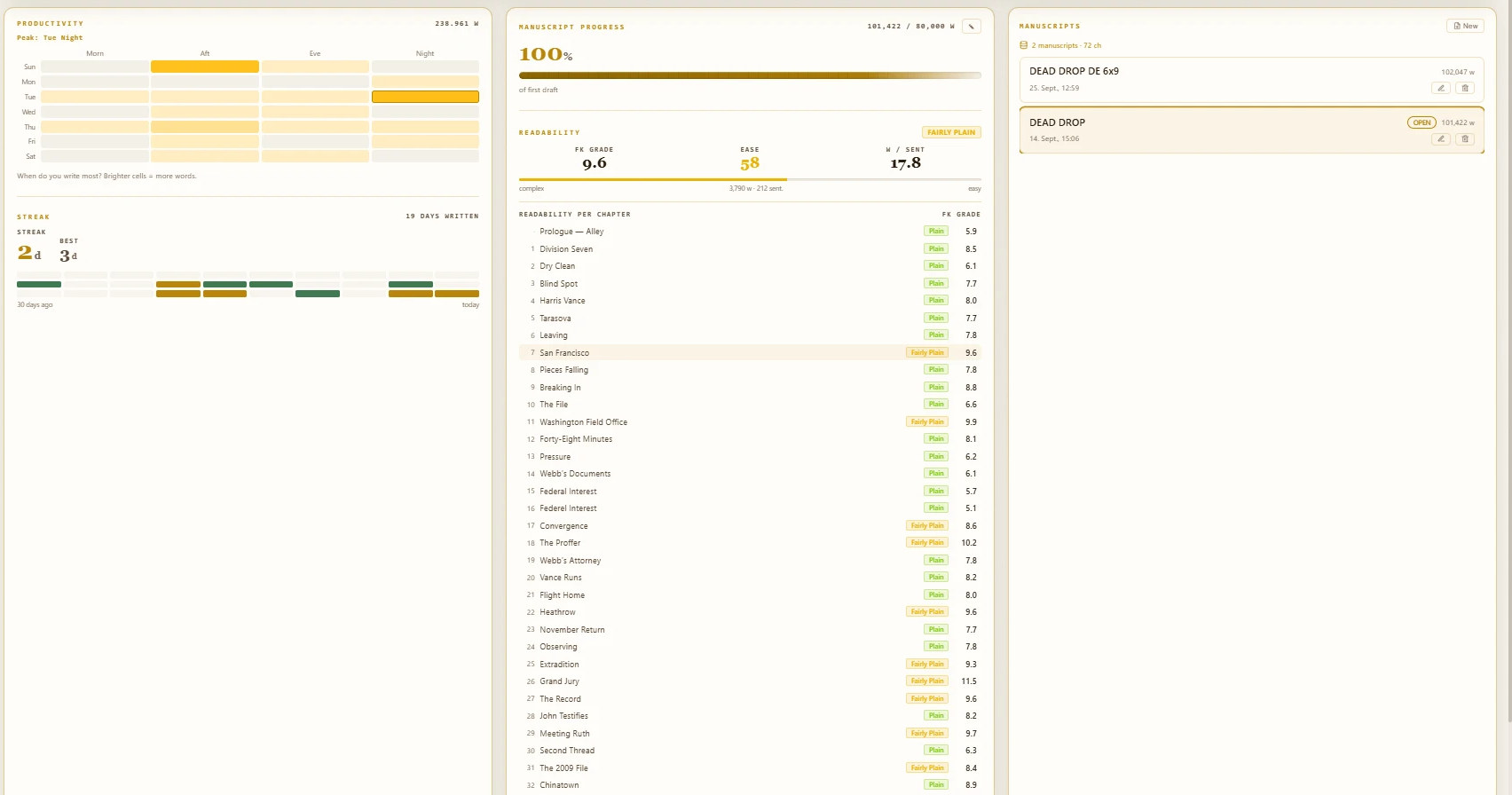
1.1How do I create an account?
Open the sign-up page, enter your e-mail address and a password, and confirm the link we send you. You can start on the free Starter plan; no card is needed.
You can also write without an account: everything is stored on your device. Sync between your devices and the encrypted cloud copy are available on every plan: up to 2 books on Starter, all your books from Author upward.
1.2How do I start my first manuscript?
Open the app. On first launch AethelWrite asks for the genre, which sets sensible defaults for layout and the AI. Then just start typing in the Sanctuary, the writing view. Your text is saved as you type.
Every further book begins in the Overview with a new manuscript. Title, author and language live in the book's metadata and can be changed at any time.
1.3Which files can I import?
The Import Center accepts Word (.docx), OpenDocument (.odt), RTF (.rtf), PDF, EPUB, Markdown (.md), plain text (.txt) and AethelWrite backups (.aethel). Drop the file onto the window or choose it; before anything is added you see a preview with the detected chapters.
Word headings become chapters; front matter such as the title page, copyright or dedication is recognised and sorted into the book's front matter. From PDFs AethelWrite removes page numbers, running heads and hyphenation at line ends.
Scrivener projects come across whole: choose Scrivener project (folder) or drop the .scriv folder onto the window — or a .zip of it. Folders and scenes in the Draft become chapters; characters and locations go to the Story Bible, synopses and notes onto the corkboard, footnotes and comments stay where they were. What Scrivener would leave out when compiling (Research, Trash, texts not included in compile) stays out here too, and the preview says how much.
1.4What do Front matter, Body and Back matter mean?
The left sidebar, Structure, shows your book as a publisher would lay it out: Front matter (half title, title page, copyright, dedication, contents …), the Body with your chapters, and Back matter (afterword, acknowledgements, about the author …).
Only the body is numbered as chapters. Front and back matter appear in the book exactly where a professional layout puts them, in print, EPUB and Word alike.
1.5How do I add, rename or move chapters?
Add a chapter with + New chapter at the end of the list, or with the + in the Body group header. The title field opens straight away. Type the name, press Enter, and the cursor lands in the text of the new chapter.
To rename, double-click the title or press F2. To move, drag a chapter by its handle or use the arrows. The context menu (right-click or Shift+F10) also moves a chapter into front or back matter, hides its heading or deletes it; deleted chapters go to the trash.
1.6What is the Index (Ctrl+K)?
Ctrl+K (on a Mac ⌘K) opens the Index: one search field for every command, view and setting. Type a few letters, such as “export”, “cover” or “radar”, and press Enter. It's the fastest way to anything whose place you don't know yet.
The Index doesn't just take you to the right area; it briefly lights up the control you were looking for, so you can find it yourself next time. If a function has its own key, the shortcut is shown to the right of the entry, so you learn the shortcuts as you search.
1.7How do I see all keyboard shortcuts?
Press ? whenever the cursor is not in the text; inside the manuscript the question mark stays a punctuation mark. You can also open the overview from the Index (Ctrl+K) under “Keyboard shortcuts”. It lists every shortcut in your language, on a Mac with ⌘, ⌥ and ⇧. The same list is at the bottom of this page.
Chapter II: Writing
6 questions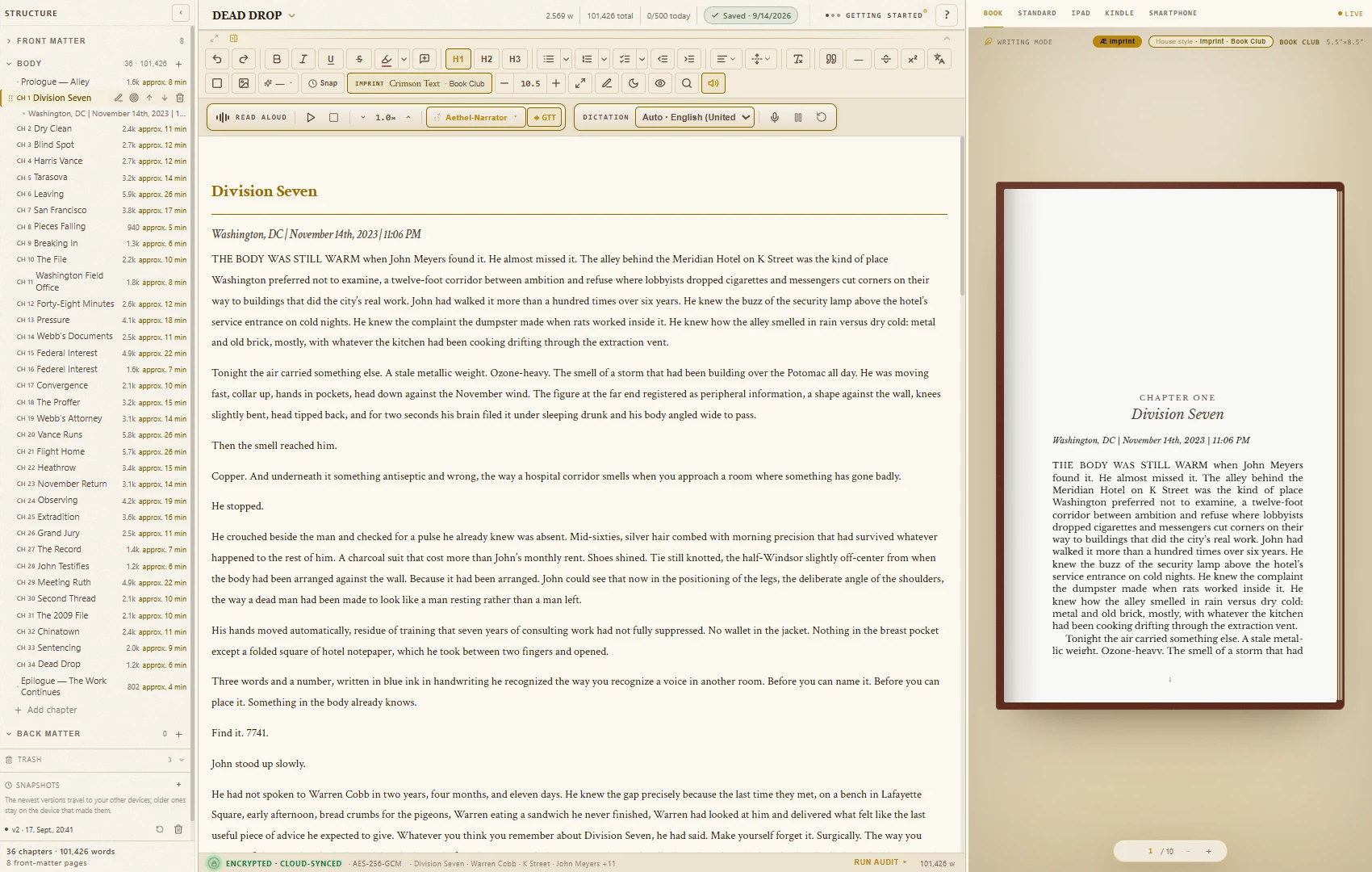
2.1What is the Sanctuary?
The Sanctuary is the writing view: your text, a quiet toolbar and your chapters. Zen mode hides everything but the words (Esc brings it back). Sepia warms the page, and Typewriter mode keeps the current line in the middle of the screen.
You can fold the toolbars away with the small arrow under the header, or with Ctrl+Shift+F1. The title, word count and save status stay visible.
2.2Which formatting tools are there?
Bold, italic, underline and strikethrough; headings; bulleted, numbered and check lists; indent; alignment; paragraph spacing; font size; and Clear formatting. The shortcuts are the ones you know from Google Docs and Word.
Everything you set by hand appears in the book preview and in every export. The book's overall layout comes from the design in the Book Formatter (see “Formatting & typesetting”).
2.3Do highlights and comments end up in my book?
No. The highlighter (Ctrl+Shift+H) and comments (Ctrl+Alt+M) are working marks for you and your editor. They are never printed, never go into the EPUB and never go into the Word file.
2.4How do versions (snapshots) work?
Snap in the toolbar, or Ctrl+S, saves a version (snapshot) of the whole book. AethelWrite keeps the last 10 versions per book on your device; the newest 3 also travel encrypted to the cloud, so every signed-in device has them.
The list Snapshots sits at the bottom of the chapter sidebar (v1, v2 …). Click a version and confirm Restore. Your current state is saved as a safety copy first, so nothing is lost.
2.5Can I set daily goals?
Yes. In the Overview, choose Targets and set Daily words and Total words. AethelWrite shows your Daily Goal, your Streak of writing days and a calendar of the last weeks. A word target per chapter is set in the chapter's context menu (Word target…).
2.6Can I write without an internet connection?
Yes, on a plane, on a train or anywhere else. Your book is stored on your device and every keystroke is saved there. Once you are online again, AethelWrite sends everything written offline to the cloud, even if you closed the browser in between.
When a new version of AethelWrite is ready, a small line says so and offers Update now or Later. Your writing is never interrupted by it.
Chapter III: Backup & sync
6 questions
3.1How do I save a backup copy of a book (.aethel)?
Click the manuscript title at the top of the editor and choose Save backup copy (.aethel). You choose a password of your own, and AethelWrite writes one file that contains the whole book: chapters, front and back matter, Story Bible, design and cover.
The file is encrypted with AES-256-GCM. The key is derived from your password with PBKDF2-SHA-256 over 600,000 rounds. Without the password nobody can open it, and neither can we. Keep the password somewhere safe.
To restore it, drop the .aethel file into the Import Center; AethelWrite asks for the password.
3.2Can I export all my manuscripts at once?
Yes. In the Export Center, the card Backup — all manuscripts creates a ZIP file (Backup .zip) with all your manuscripts as readable files. It is the quickest way to take everything with you. Unlike the .aethel file, this ZIP is not encrypted, so store it accordingly.
3.3What are the Master Key and the 12 recovery words?
Your books are encrypted before they leave your device. The key for this is your Master Key. When you activate the Recovery Vault, AethelWrite gives you 12 recovery words from which the Master Key can be restored on any device. You set it up in Settings → Security → Recovery Vault, or from the reminder in the editor (Set up). The Recovery Vault is available on every plan; without it, your books stay on this device.
Write the 12 words down on paper and keep them safe. We cannot replace them. We never see them and never store them. Anyone who loses them and all their devices cannot recover their cloud copy, and neither can we.
3.4What does “zero-knowledge” mean?
Our server only stores encrypted data it cannot read. Chapters, titles, Story Bible, cover and design are encrypted on your device (AES-256-GCM) before they are synced. Decryption happens only on your devices, with your Master Key.
3.5How do I add a second device?
Sign in on the new device with the same account. The dialog Unlock your Recovery Vault appears: type your 12 recovery words and choose Unlock Vault. After that the device syncs on its own. Changes from both devices are merged, so nothing is overwritten.
Keys and settings are stored per device and per web address. On a new device or browser you enter your API keys once more.
3.6I deleted something. Can I get it back?
Yes. Deleted chapters and manuscripts go to the Trash first and stay there for 30 days. The Trash sits at the bottom of the chapter sidebar (you can also find it with Ctrl+K). Choose Restore next to the entry. After 30 days entries are removed for good, on all devices; Delete for good does so right away.
Chapter IV: Cover Workshop
4 questions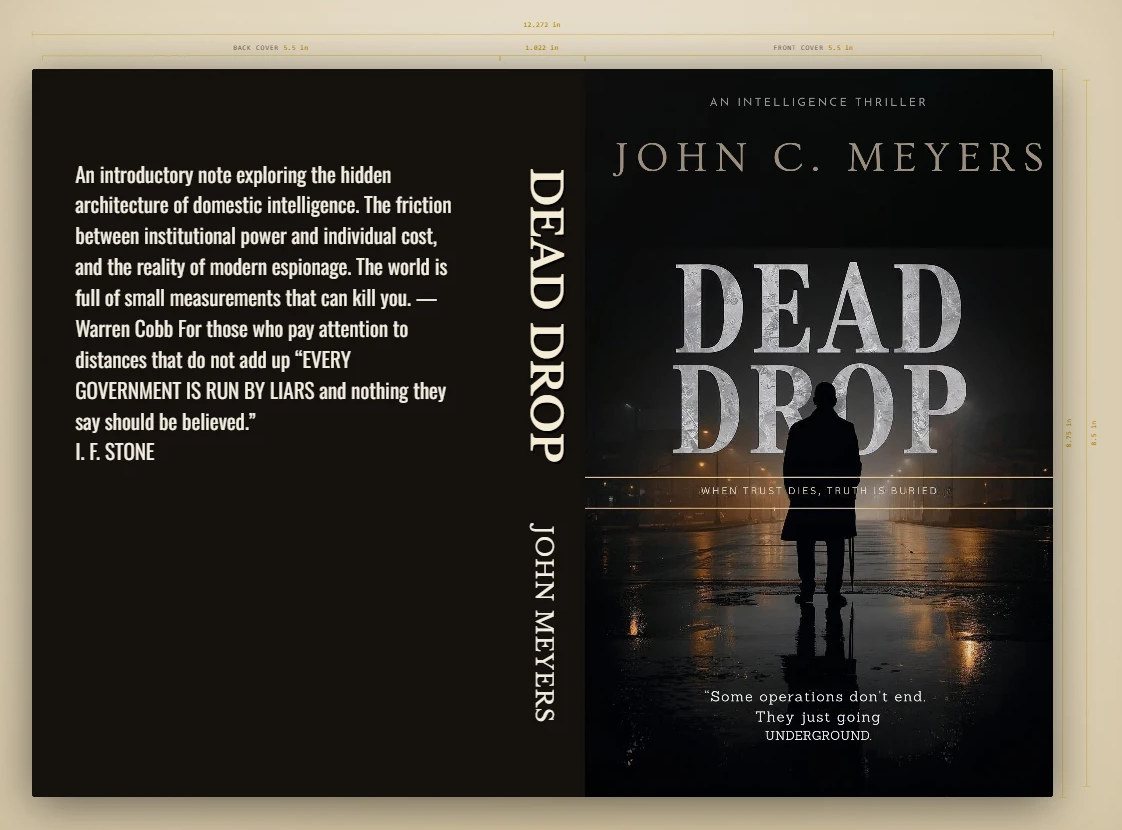
4.1Which covers can I make?
The cover tools are in the Book Formatter, tab Cover & ISBN. There are three kinds: the e-book cover (front only, for the stores), the KDP print cover for the paperback with back, spine and bleed, and the hardcover (case laminate) with wrap and hinge. The spine width is calculated from page count and paper, exactly as Amazon's own calculator does.
Designing covers, the print cover, the barcode and the mockups in the studio are part of the Author plan. Uploading your own finished cover and embedding it in the e-book works on every plan.
4.2How do I add my own image?
Upload an image as the background or add further images with + Image. Drag them into place on the cover; the guides show bleed and the safe zone. For print, the image should have at least 300 dpi at its final size.
4.3How do I set title, author and spine text?
Click a text on the cover or add one with + Text. Every block has its own font, size, colour, alignment, letter spacing and effects (italic, small caps, shadow, outline). The spine is a block of its own, so you can edit it separately. Spine text is only allowed from 79 pages; below that AethelWrite warns you.
Fonts, colours and sizes stay within ranges that work in print, so nothing ends up too small or unreadable.
4.4How do I export the cover?
The e-book cover is saved with Download cover (PNG). On every plan it is also embedded in the EPUB automatically. The print cover is exported with Print cover as PDF: one file at 300 dpi including bleed, as KDP expects. Download template gives you the empty KDP template if you design elsewhere.
Chapter V: Formatting & typesetting
10 questions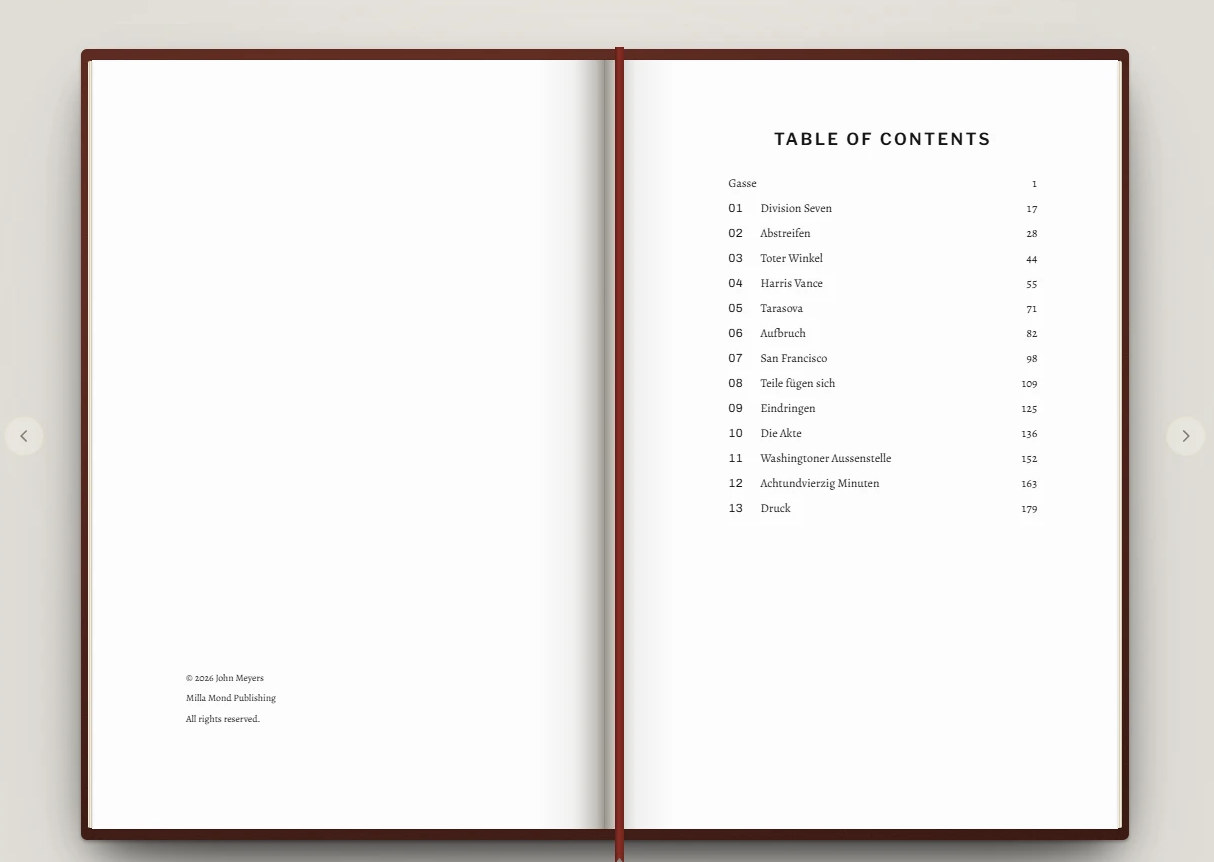
5.1What are designs?
A design is a complete book layout: body font, chapter opening, ornaments, running heads and the balance of the page. AethelWrite offers 53 of them, grouped by genre (suspense, fantasy, romance, literary fiction, non-fiction and special editions). Starter includes 4 of them, Author 18, Writing Studio all of them.
Choose one in the Book Formatter, tab Themes; Compare designs shows them side by side. Print, PDF, EPUB and Word then set your book the same way.
5.2Which fonts can I use?
The Book Formatter offers a curated library of book fonts: serif body faces, display faces for headings and a few script faces. They are embedded in the PDF and EPUB, so your book looks the same everywhere. Every design already comes with a matching pairing, and you can change it.
5.3What is the house style?
The house style is a layer on top of the design, chosen in the Themes tab under International Master Formats. It covers the rules your book follows throughout: quotation marks, first-line indents, the first words of a chapter in small caps, the drop cap. The design suggests them; as soon as you change one, your choice wins.
5.4What are imprint editions?
Imprint Editions (also in the Themes tab) are ready-made combinations of design and house style, modelled on the typical look of well-known publishing lines, for example a first edition or a pocket edition. One click sets everything; you can still adjust every detail afterwards.
5.5How do I create the front matter?
Front matter pages (half title, title page, copyright page, dedication, epigraph, contents …) are added in the Structure sidebar and filled in the Book Formatter, tab Front Matter. The title page takes title, subtitle and author from the book's metadata (Project Metadata). The copyright page has fields for ISBN, publisher and edition. The table of contents is generated automatically.
5.6Drop caps, small caps, chapter openings: how does that work?
The design decides how a chapter opens: the chapter number and title, a drop cap, the first words in small caps and how far down the page the text starts. You can change each of these in the Book Formatter.
AethelWrite checks the typography: no drop cap in front of a number or italic text, and correct capitals in words that begin in all caps.
5.7How do I insert scene breaks and ornaments?
Use the ornament button in the toolbar. A click inserts the current ornament at the cursor; right-click opens the selection with symbols, alignment (centred or left) and your own symbol.
You can also upload your own ornament as an image: SVG, PNG, JPEG, WebP or TIFF, up to 200 KB. It applies to the whole book and appears in the editor, in print, in the EPUB and in Word.
5.8Can I produce a large-print edition?
Yes. The large-print design follows the guidelines of the RNIB and the US National Library Service: 16 pt text, 1.5 line spacing, a clear typeface and no decorative elements that make reading harder.
5.9Does AethelWrite support boxes and footnotes for non-fiction?
Yes. Boxes come in six kinds (such as excursus, key point, example, definition) and are set consistently in every format. Footnotes are set with Ctrl+Alt+F. They are numbered automatically and appear at the foot of the page in print and in Word, and as linked notes in the EPUB.
5.10How do I see what my book will look like?
The print preview shows your book as it will be printed, page by page, with running heads, page numbers and the real line breaks. Switch between One page, Spread and Overview. Widows and orphans are prevented by the layout engine.
Chapter VI: AI Ghostwriter
5 questions
6.1What can the AI Ghostwriter do?
It helps with the craft, it doesn't replace your voice: continue or rephrase a passage, check the plot for holes, check whether a character's voice stays consistent, and suggest synonyms. It uses your Story Bible (characters, places, notes) so its suggestions fit your book.
Nothing enters your text without your consent. You decide what you accept.
6.2Which AI providers can I use?
OpenAI (ChatGPT models), Anthropic (Claude), Google (Gemini) and DeepSeek. You can switch at any time; each only needs its own API key.
6.3Does my text go through AethelWrite's servers?
No. Your browser calls the provider directly with your key. Your key is stored only on your device. We see neither your prompts nor the answers. Only read-aloud with a voice provider and cloud dictation pass through our server (see “What can the server see?”).
6.4In which language does the AI answer?
In the language of your AethelWrite interface, even if your manuscript is written in another language. Change the interface language and the AI answers in the new one.
6.5What does the AI cost?
AethelWrite charges nothing for it. You pay the provider directly, at their published prices, through your own account there. For a whole novel draft that is usually a few euros or dollars. If your credit runs out, AethelWrite tells you so and links to the provider's billing page.
Chapter VII: API keys, step by step
11 questions
7.1Where do I enter my keys in AethelWrite?
Open Settings. AI keys go into the tab Keys (section API Keys), keys for read-aloud and dictation into the tab Voice (Voice & Audio APIs). Each row carries the provider's name. Paste the key and press Check: AethelWrite tests it free of charge and shows Key confirmed or Key rejected.
Keys are stored encrypted on this device only, never on our servers, which is also why you enter them again on every new device. For read-aloud (except with Amazon Polly) and cloud dictation, the key travels with each request through our server to the provider, without being stored there.
7.2OpenAI (ChatGPT, Whisper, read-aloud)
Sign in at platform.openai.com, open API keys and choose Create new secret key. Copy the key, which starts with sk-; it is shown only once. Add a small credit under Billing. The same key works for the Ghostwriter, Whisper dictation and OpenAI read-aloud.
7.3Anthropic (Claude)
Sign in at console.anthropic.com, go to API Keys and choose Create Key. Copy the key (it starts with sk-ant-) and top up credit under Billing.
7.4Google (Gemini and Google Cloud voices)
For Gemini: at aistudio.google.com choose Get API key → Create API key. The key starts with AIza.
For Google Cloud read-aloud you need a key from a Google Cloud project with the Text-to-Speech API enabled (also AIza…). If your organisation blocks API keys, upload the JSON file of a service account instead. Its private key never leaves your device; your browser signs the sign-in to Google itself.
7.5DeepSeek
Sign in at platform.deepseek.com, open API Keys, create a key (it starts with sk-) and add credit. DeepSeek is among the most affordable providers.
7.6ElevenLabs (read-aloud)
Sign in at elevenlabs.io, open your profile and then API Keys, and create a key. In AethelWrite it goes into the ElevenLabs field of the voice settings. After saving, AethelWrite loads the voices of your account.
7.7Microsoft Azure (read-aloud): key *and* region
In the Azure portal create a Speech resource. Under Keys and Endpoint you will find a key and the region (for example westeurope). Azure needs both. If Azure rejects the key, check the region too: a key from another region is rejected the same way.
7.8Amazon Polly (read-aloud): three fields
In AWS create an IAM user with Polly permission only, and generate an access key. Enter the access key ID (starts with AKIA), the secret access key and the region. The most common mistake is swapping the first two; AethelWrite points it out. Your device signs every request itself, so the secret never leaves it.
7.9Cartesia and Deepgram
Cartesia (read-aloud in all 21 languages): create a key at play.cartesia.ai under API Keys. Deepgram (dictation with Nova-3 and read-aloud with Aura-2): create a key in the Deepgram console under API Keys. Paste both into their fields in the voice settings.
7.10How do I know a key was rejected?
Check next to the field tells you at once: Key confirmed or Key rejected. During use AethelWrite says what went wrong and what to do: a wrong or expired key leads you to Settings, empty credit leads to the provider's billing page, and too many requests only ask you to wait a moment.
7.11How do I remove or revoke a key?
In AethelWrite, clear the field; the change is saved at once and the key is gone from this device. To make sure a key can no longer be used anywhere, revoke (delete) it on the provider's site as well, in the same place where you created it.
Chapter VIII: Without a key
2 questions
8.1What works without any API key?
Almost everything: writing, structure, Story Bible, the Book Formatter with the designs of your plan, the Cover Workshop, the rule engine of the Correction Center, every export and print, backup and sync.
Read-aloud also works without a key, with your device's voice; from the Author plan, so does dictation with your browser's free speech recognition (Web Speech).
8.2What needs a key?
The AI Ghostwriter (any of the AI providers), the premium voices for read-aloud (ElevenLabs, Cartesia, Azure, Google, Deepgram, OpenAI, Amazon Polly) and the more accurate cloud dictation (Deepgram Nova-3 or OpenAI Whisper).
Chapter IX: Read aloud & dictation
7 questions9.1Which voice reads my text?
AethelWrite uses the best voice you have set up, in this order: ElevenLabs, Cartesia, Azure, Google, Deepgram, OpenAI, and finally your device's voice. If you choose a voice yourself (Voice), your choice wins. The read-aloud bar always shows which voice is speaking.
Reading aloud is a revision tool: the eye fills in gaps, the voice reads exactly what is there. If you want a file to listen to, the Export Center has an Audiobook card that creates an MP3.
9.2Which languages can be read aloud?
Cartesia, Azure and Google cover all 21 book languages (Azure and Google each with a male and a female voice), ElevenLabs 18 of them natively and the remaining three through its newer model, Amazon Polly 19 (Hebrew and Hungarian are missing). Deepgram offers fewer languages. OpenAI reads regardless of language.
9.3What happens if a provider stops mid-chapter?
If a provider gives up, for example because your credit has run out, the next available voice continues exactly where it stopped, and AethelWrite tells you which voice took over. You don't have to start the chapter again.
9.4How do I change the speed?
With the speed control in the read-aloud bar, or Ctrl+↑ and Ctrl+↓ in steps of 0.25. The speed applies to every voice.
9.5Can I dictate in a different language than the interface?
Yes. Open Dictate and choose the Dictation language, independent of the interface language: an English interface, dictation in Polish. The choice applies to the current session.
9.6Which speech recognition does AethelWrite use?
Three are available: Deepgram Nova-3 is used first when a key is set. It covers all 21 book languages and makes clearly fewer errors than Whisper. OpenAI Whisper is the fallback on devices without built-in speech recognition. Without a key, the browser's free Web Speech recognition takes over.
Dictation is part of the Author plan (and Writing Studio). Read-aloud stays available on every plan.
9.7Does dictation work on a phone?
Yes. On Android use Chrome; on the iPhone use Safari. If the browser doesn't offer speech recognition, a Deepgram or OpenAI key helps. Allow microphone access when the browser asks for it.
Chapter X: Revision Center & manuscript check
7 questions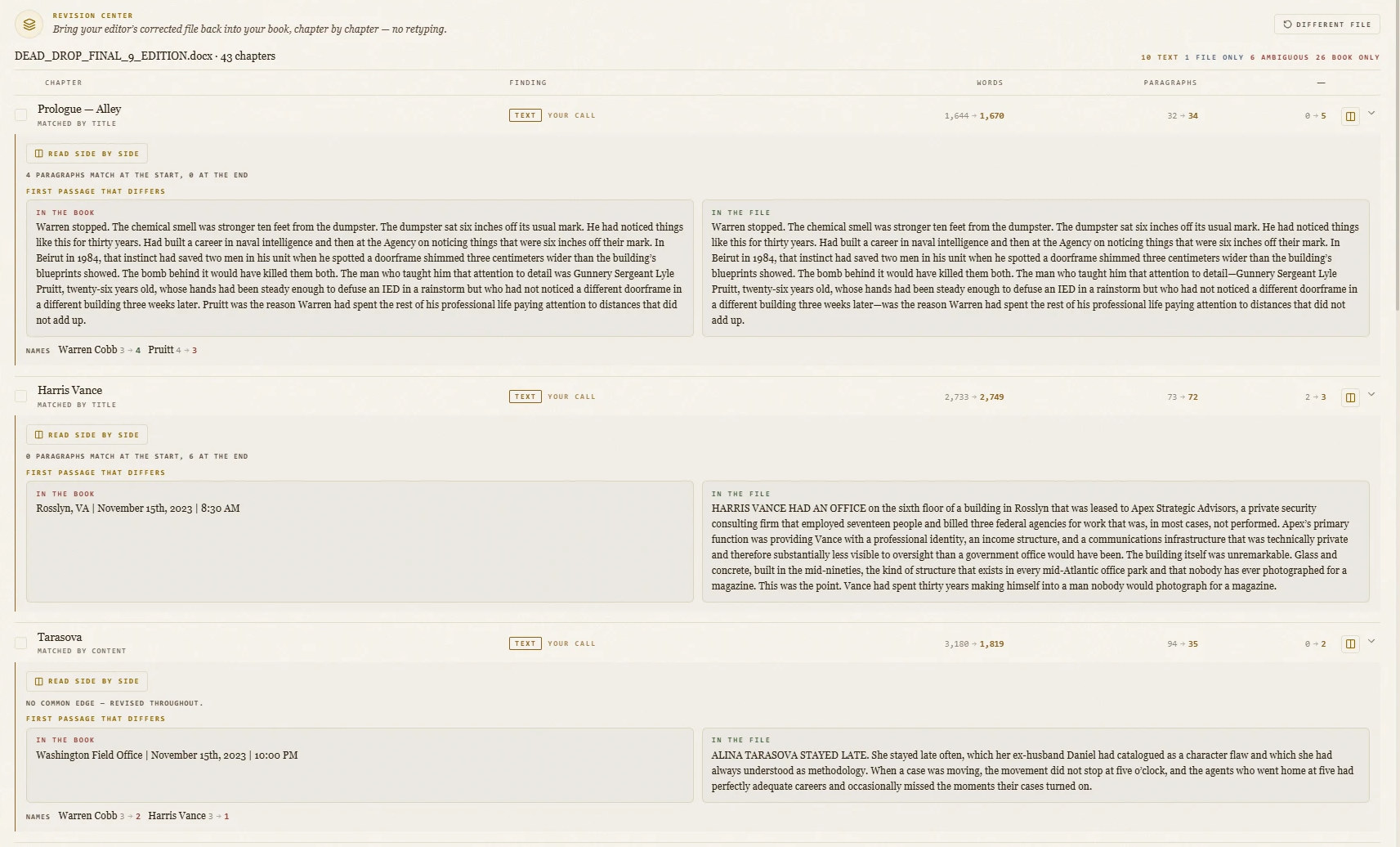
10.1What does the Revision Center do?
The Revision Center fixes the form of your text, not its content: quotation marks, apostrophes, dashes, ellipses, spaces before punctuation, non-breaking spaces before units, according to the rules of your book's language. It works on the whole book at once, and you see every change before it is applied. The rule engine works without AI and without a key.
10.2What is the manuscript check?
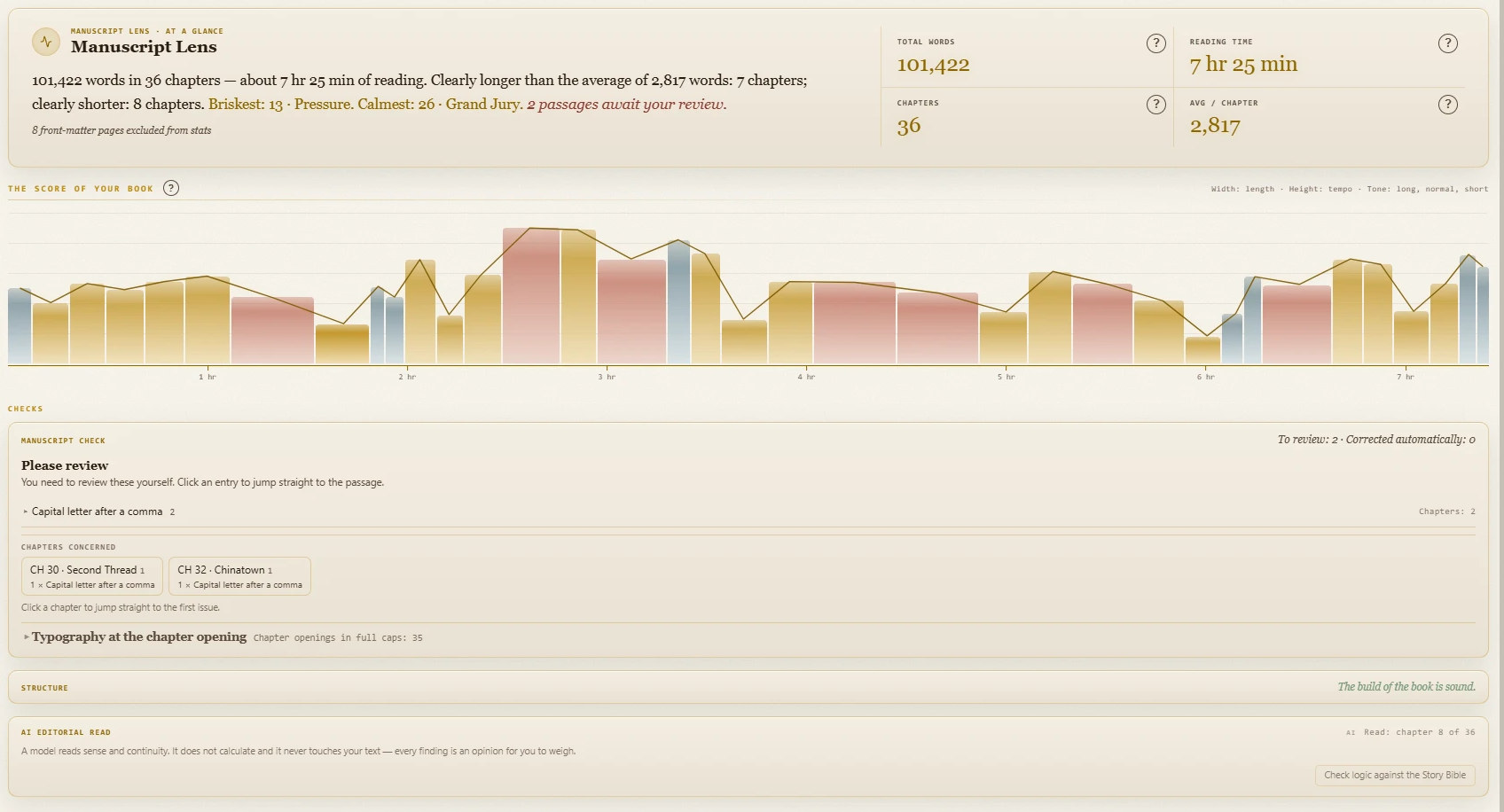
The Manuscript check in Manuscript Lens goes through the whole book looking for what you can't see in the editor but readers will see in the finished book: straight instead of typographic quotation marks, leftovers from old imports, invisible characters and special spaces, spaces before punctuation, empty headings. Click a finding to jump to the place in the text. Before anything is replaced, AethelWrite shows you the exact passage and asks you to confirm.
The check follows fixed rules and works without AI and without a key. Only rewriting duplicated paragraphs uses AI, and only if you ask for it.
10.3Can AethelWrite find duplicated paragraphs?
Yes, under Duplicate paragraphs in Manuscript Lens. Paragraphs that appear twice, often left over from copying or importing, are found and shown side by side. For each finding you decide: keep, delete or merge.
10.4What is Word Radar?
Word Radar in Manuscript Lens shows which words you use most and where a word comes back too soon, either in the open Chapter or across the whole Manuscript. It ignores filler words and the names in your Story Bible. It runs entirely on your device, without AI and without a key.
Scan reads the text and lists your most frequent words. A Close repetition is a word that appears again within 30 words. Highlight marks both in the editor: frequent words with a gold shimmer, close repetitions with an oxblood underline. Auto rescans after every pause in your typing, so the marks follow your text.
Shift+right-click any word (or press Shift+F10 at the cursor) to see how often it appears in the manuscript; with Highlight on, a plain right-click is enough on marked words. The synonym suggestions in that menu come from AI and need a key; the count doesn't.
10.5How does the Echo workshop work?
The Echo workshop resolves close repetitions in the open chapter. You start it from Word Radar. On wide screens it opens beside your text, where the live preview usually sits; on narrow screens it opens as a window. For every affected sentence the AI suggests the smallest possible change, usually a single word. It always changes the later occurrence, leaves names, numbers and technical terms alone, and where the repetition looks deliberate it advises keeping the sentence as it is.
Click a suggestion to jump to its place in the text: the echo word glows oxblood, an inserted word sage green. Insert suggestions one by one or all selected ones at once (Select all / Select none); a single Undo takes back everything inserted. If a sentence still contains a second echo afterwards, its card offers Refine: one single AI request for that sentence only.
Each round checks up to 30 sentences. Then you see a summary and choose Review more or Continue later; you can pick up again any time via Manuscript Lens › Word Radar › Echo workshop. The workshop needs an AI key, and each round runs as requests through your provider. That's why it never starts on its own, only when you click.
10.6What does the structure check show?
The Structure section of Manuscript Lens looks at your book as a whole: chapter lengths, headings, front and back matter, and chapters that are empty or suspiciously short. It flags what would look odd in the finished book before you export.
10.7Which language rules are used?
The rules of your book language (set in the book's metadata), not those of the interface. Each of the 21 languages has its own profile: German and French quotation marks, Spanish inverted question marks, non-breaking spaces before French punctuation, and so on.
Chapter XI: Export & publishing
5 questions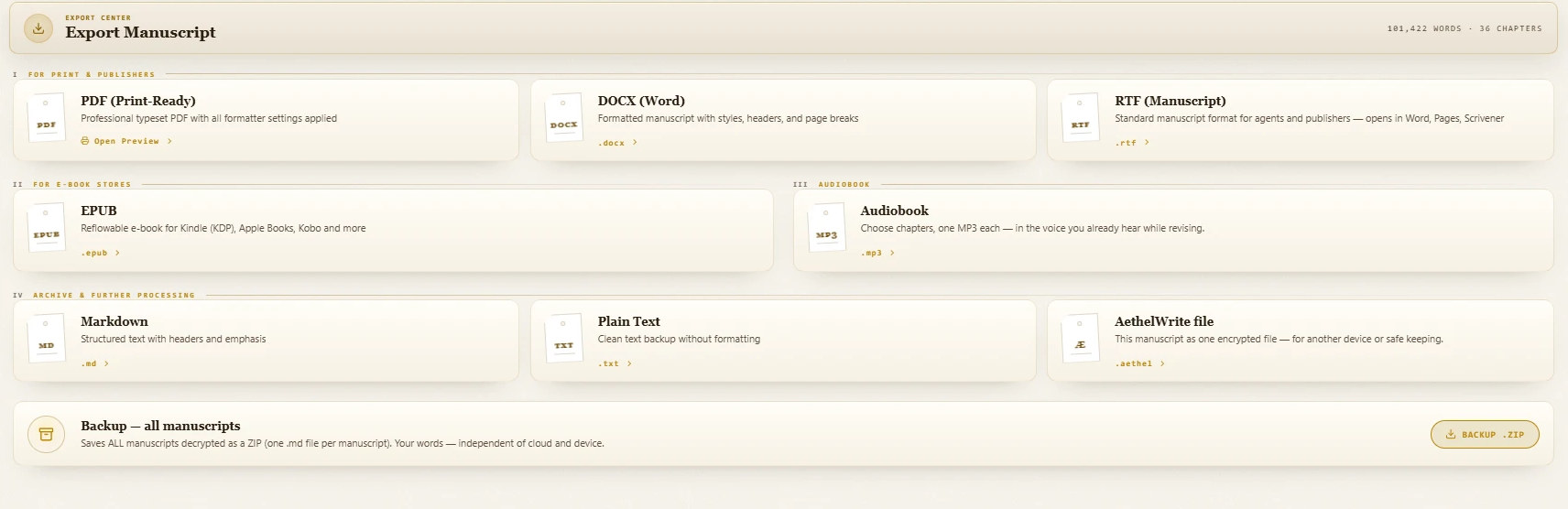
11.1Which formats can I export?
PDF (print-ready), EPUB, Word (DOCX), RTF (manuscript), Markdown and plain text. Every format uses the same book: the same order, front and back matter and the same table of contents. Open the Export Center and choose the card.
The same place also offers the ZIP backup of all manuscripts and an Audiobook (MP3) read with your chosen voice.
11.2Is the PDF print-ready?
The PDF is set like a book: trim size, margins and gutter, embedded fonts, running heads, page numbers, and widows and orphans avoided. AethelWrite writes the PDF itself, so line breaks and justification are exactly those of the preview.
11.3Will my book pass the stores (KDP, Apple Books, Kobo, Google Play, B&N)?
Before the EPUB export AethelWrite checks the official rules of the stores: cover size and colour space, embedded fonts, required metadata, table of contents. If something is missing you get a clear warning with the reason. The export itself is not blocked, because you decide.
11.4Does the Word file have a real table of contents?
Yes. Chapter headings use Word's heading styles, so Word builds its own table of contents and the navigation pane works. Footnotes are real Word footnotes, and ornaments are embedded as images.
11.5Can I use Calibre?
Yes. The EPUB from AethelWrite opens in Calibre without changes. There you can convert it into other formats, for example for older e-readers.
Chapter XII: Plans & account
5 questions
12.1Which plans are there?
Starter is free: up to 35,000 words per book, end-to-end encrypted cloud sync for up to 2 books, version history (10 versions per book, the newest 3 on all your devices), 4 of the 53 designs, every export format and your own finished cover in the e-book. Author removes the word limit and adds end-to-end encrypted cloud sync for all your books, 18 of the 53 designs, dictation, the Series Bible for book series, and the cover workshop with print cover, barcode and mockups. Writing Studio adds all 53 designs, Story-Pulse, which detects characters, places and factions automatically, and Chronicle Nexus, which follows characters and places across every volume of a series. The AI Ghostwriter with your own key, read-aloud and support by e-mail are part of every plan. Current prices are on the plans page.
AI and premium voices are always billed by the provider (see “AI Ghostwriter”), on every plan.
12.2How do I pay?
By card or the other methods Stripe offers in your country, monthly or yearly. Payment is handled by Stripe; AethelWrite never sees your card details.
Author is also available as a one-time purchase, Author Lifetime: pay once, no subscription — every Author feature including updates and all 53 designs, with no end date for as long as AethelWrite is offered. All prices are on the pricing page; they are final prices without VAT (small business, § 19 German VAT Act). Europe pays in euros, all other countries in US dollars.
12.3How do I cancel?
The simplest way is Cancel contracts here: no sign-in needed, for every subscription and for Author Lifetime. After you submit it, you see your notice with date and time and receive a confirmation of receipt by e-mail.
Open Plans & Billing from the profile menu (or go to the plans page). Under Manage Subscription choose Open Customer Portal. In Stripe's customer portal you cancel, change your plan or update your payment details. Your manuscripts stay on your devices after cancelling.
12.4Where are my invoices?
In the customer portal: plans page → Manage Subscription → Open Customer Portal. Every invoice can be downloaded there as a PDF.
12.5How do I delete my account?
Open Settings, tab Storage, and choose Delete account, then Permanently delete account. Cancel an active subscription first. Your account, subscription and every copy in the cloud are deleted in one step, completely or not at all. Export or back up your books first; afterwards nobody can restore them.
Chapter XIII: Privacy & security
5 questions
13.1Are my manuscripts end-to-end encrypted?
Yes. Before a chapter leaves your device it is encrypted with AES-256-GCM under your Master Key. Only your devices can decrypt it. Encryption runs in a separate background process, so writing stays smooth even with very long chapters.
13.2What can the server see?
Your e-mail address, your plan and encrypted data blocks with their size and time of change. It cannot see your text, titles, notes, Story Bible or covers. AI requests go from your browser straight to the provider and never reach our server.
There are two exceptions: for read-aloud with ElevenLabs, Cartesia, Azure, Google, Deepgram or OpenAI, and for cloud dictation, the text or your recording passes through our server together with your key; the server forwards it to the provider without storing it. Amazon Polly is called directly from your device. Your keys are stored only on your device.
13.3Where are my data stored?
Primarily on your own device. The encrypted cloud copy is stored in the European Union (Ireland).
13.4How is the app protected against attacks?
A strict Content Security Policy only allows known addresses. Imported and synced text is sanitised before display. Keys and manuscripts are handled with the browser's own cryptography (WebCrypto).
13.5What will support never ask me for?
Your 12 recovery words, your password, your Master Key or an API key. Not by e-mail, not in chat, not on the phone. Anyone who asks is not us.
Chapter XIV: Keyboard shortcuts
1 question
14.1Which shortcuts are there?
They are all listed below, grouped by area: navigation, editor, paragraph and lists, and audio. In the app, ? opens the same overview, and Ctrl+K opens the Index, which shows the key next to many functions.
On a Mac use ⌘ instead of Ctrl, ⌥ instead of Alt and ⇧ instead of Shift. Only read-aloud and dictation use ⌃ (Control) there, because ⌘ plus Space belongs to Spotlight on a Mac. Ctrl+Shift+F1 folds the toolbars away and back.
| Keys | Action |
|---|---|
| Ctrl+K | Index |
| Alt+1…9 | Jump to main area |
| Alt+0 | Focus the work area |
| Ctrl+Shift+F | Zen mode on / off |
| Ctrl+Shift+F1 | Show or hide toolbars |
| Ctrl+P | Quick Preview (Standard) |
| F2 | Rename chapter |
| Shift+F10 · Menu key | Word frequency · synonyms at cursor |
| ? | Show this overview |
| Esc | Exit Zen / Close dialogs |
| Keys | Action |
|---|---|
| Ctrl+Z | Undo |
| Ctrl+Y · Ctrl+Shift+Z | Redo |
| Ctrl+B | Bold |
| Ctrl+I | Italic |
| Ctrl+U | Underline |
| Ctrl+Alt+1…3 | Heading 1–3 |
| Ctrl+F · Ctrl+H | Find & replace |
| Ctrl+S | Manual Snapshot |
| Ctrl+Alt+F | Insert or edit footnote |
| Ctrl+Alt+M | Add comment |
| Ctrl+Shift+H | Highlight |
| Ctrl+Shift+Enter | Ornament |
| @ · [[ | Story Bible reference |
| Alt+I | Insert Story Bible card |
| Keys | Action |
|---|---|
| Ctrl+Shift+8 | Bulleted list |
| Ctrl+Shift+7 | Numbered list |
| Ctrl+Shift+L | Left align |
| Ctrl+Shift+E | Center align |
| Ctrl+Shift+R | Right align |
| Ctrl+Shift+J | Justify |
| Ctrl+Shift+9 | Checklist |
| Ctrl+] | Increase indent |
| Ctrl+[ | Decrease indent |
| Ctrl+Shift+. | Increase font size |
| Ctrl+Shift+, | Decrease font size |
| Ctrl+\ | Clear formatting |
| Keys | Action |
|---|---|
| Ctrl+Space | Play / pause read-aloud |
| Ctrl+. | Stop read-aloud |
| Ctrl+↑ | Read faster |
| Ctrl+↓ | Read slower |
| Ctrl+R | Start / stop dictation |
| Ctrl+Shift+P | Pause / resume dictation |
| Ctrl+Shift+R | Undo last dictated segment |
Didn't find your answer?
Write to us. A person reads every message and usually replies within one business day. We will never ask for your 12 recovery words, your password or an API key.
Contact support